
In managing a big family weekend, I used Excel to track everything from invitations to RSVPs. I tried to create a macro to do something, but deleted it after figuring out it wouldn’t do what I wanted. Yet, every time I opened the workbook, Excel asked if I wanted to run macros as shown in the below image.

What the hey? I deleted the macro. Why are you asking, Excel? So I thought the macro wasn’t deleted. I opened the Macro dialog box (Tools > Macro > Macros), which showed NOTHING indicating no macros existed in this workbook.
OK, so why are you giving me these macro messages? If I can’t find an answer to a Microsoft problem, I post the problem in the Microsoft forums where MVPs often provide the answer. This time, I lucked out on finding the solution myself (which doesn’t happen often as I guess I find the rare problems). Here are the steps I used since my situation didn’t need to do all the steps shown in the solution — the only folder that appeared as the Microsoft Excel Objects.
1. Save a back-up of the file and work from the back-up. If it works, you can save the back-up over the original file.
2. Right-click any tab and select View Code.

3. Double-click the first item in the Microsoft Excel Objects folder.
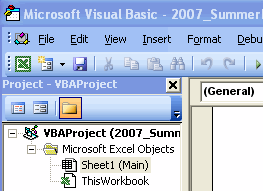
4. Press Ctrl+A to select everything (even if nothing shows) and press Delete.
5. Repeat Steps 2 and 3 until completed for all items in the Microsoft Excel Objects folder.
6. Close the Visual Basic Editor.
7. Save the workbook.
Open the workbook again and the Macro message should be gone for good.
If you have a modules folder, expand it (click Modules folder once to expand) and right-click the module. Select Remove Module. Excel asks if you want to export it — up to you. Repeat the steps for all modules. Once done, do Steps 6 and 7.
21 thoughts on “Deleting the Invisible Excel Macro”
Comments are closed.
Thank you. This was exactly my problem and the solution worked.
Thank you! That was exactly my problem and the solution worked!
Thank you so much for posting this! It was very helpful! (Problem solved 🙂
I have the opposite problem. My macro disappeard, and I need to get it back.
The “macros exist” warning comes up, but I can’t find the macro.
This was an annoying problem I had and this solved it.
Thank you so much! I spent hours trying to figure it out.
Thank you very much for your solution.. It’s help me to solve my problem..
Thank you sooo much! I have spent so much time on this and researching on the internet. Thank goodness I ran into your webpage 🙂
Thank you! That was exactly my problem and the solution worked!!
Wow that was annoying and now it’s gone.
Thanks, well done.
Grazie , grazie , grazie !!!!
thanks, i’ve solved my problem with your method
tried it twice, didn’t work
Stu — maybe mine is based on a too old version of Excel? Some of the steps in the Microsoft-related posts in this blog don’t work with the latest version.
Thanks! You saved me from a lot of frustration.
Many thanks for this article! Almost can’t believe that this solved my problem! THANKS!
14 years I’ve been putting up with this and nobody ever has an answer. Especially disheartening as I love excel – I even use the graphics features to design garden and brickwork layouts thanks to the easy grouping and rotational features. This problem here has been my only gripe and a true bane in my posterior. You rock so hard it almost hurts. Thank you!
Any tips on how to do the same in Word (2011)? I have exact same situation: created a macro, deleted it, but still get warning every time I open the doc.
Is that 2011 for Macs?
You’re a star! <3 Thank you!
I didn’t see if anyone did this but this worked for me. If you right click on the item and select assign macro. It takes you to the assign macro window with the phantom macro in the macro name box. All I did was delete the name from that box, leaving it blank. Hit OK. Problem Solved. Hope this helps.